
Ever found a YouTube video you wanted to watch offline, only to realize there’s no built-in way to save it to your phone or laptop? You’re not alone. Millions of people search for a reliable way to turn YouTube videos into files they can keep, and that’s exactly what a Free YouTube to MP4 converter does.
In this guide, we’ll walk through how these tools work, what features actually matter, how to use them safely, and how to avoid the common pitfalls that trip up first-time users. By the end, you’ll know exactly what to look for in a free YouTube to MP4 converter and how to use one without risking your device or your data.
Understanding YouTube Video Conversion
A YouTube to MP4 converter is a tool that takes a YouTube video’s streaming data and repackages it into a standard MP4 file you can download and store. When you paste a video URL into a converter, the tool reads the video’s available streams, lets you pick a resolution, and then processes the file into MP4 format.
Our team has tested dozens of these tools over the years, and the technical process is fairly consistent across most reputable platforms: fetch, decode, re-encode (if needed), and deliver.
The reason this matters is simple. YouTube videos are streamed using formats and protocols designed for playback in a browser, not for offline storage. A converter bridges that gap, giving you a file format that works everywhere — from your laptop’s media player to your phone’s gallery app.
Why MP4 Is the Preferred Video Format
MP4 has become the default choice for video conversion because it balances quality and file size better than most alternatives. It’s supported natively by nearly every device, operating system, and media player, which means you won’t run into compatibility headaches after downloading.
When we recommend a format to someone converting videos for the first time, MP4 is almost always the answer unless they have a specific reason to need something else, like MP3 for audio-only files or MOV for certain editing software.
Comparing Video Converters and Video Downloaders
These two terms get used interchangeably, but they’re not quite the same. A video downloader simply grabs the original file as YouTube serves it, sometimes in formats like WebM.
A video converter goes a step further, transforming that file into a different format (usually MP4) so it plays correctly across more devices. Many modern tools combine both functions in a single step, downloading and converting at once, which is why the line between them has blurred for most everyday users.
Key Features to Look for in a Free YouTube to MP4 Converter
Here’s what our team at YTMPV4.biz looks for before recommending any tool.
High-Quality Output (720p, 1080p, 4K)
A good converter should let you choose your output resolution rather than forcing a single default. Whether you need a quick 720p file for sharing or a crisp 4K version for archiving, the option should be there without extra cost.
No Watermark Downloads
Watermarks added by the converter (not the original creator) are a clear sign of a lower-quality or ad-driven tool. Reliable converters deliver clean files that match the original video.
Unlimited Downloads
Some platforms cap how many videos you can convert per day or session. A trustworthy free converter typically avoids artificial limits, though heavy or commercial use may warrant a paid tool.
No Registration Required
You shouldn’t need to create an account or hand over personal details just to convert a video. The best tools work instantly, with no sign-up wall standing between you and your download.
Mobile-Friendly Compatibility
Since a large share of users convert videos directly from their phones, the tool should work smoothly in a mobile browser without requiring a separate app install.
How to Safely Convert YouTube Videos to MP4
Here’s the straightforward process our team follows every time.
Copying the Video URL
Navigate to the YouTube video you want to convert, tap or click the Share button, and copy the video’s URL. . This URL is what you’ll paste into the converter.
Choosing the Correct MP4 Quality
Select your preferred resolution based on what you actually need. Higher resolutions take longer to process and create larger files, so match the quality to your purpose, whether that’s casual viewing or archival storage.
Downloading the Converted Video
Once the conversion finishes, download the file directly to your device. Always confirm the file extension reads. Make sure the downloaded file ends with the .mp4 extension before opening it, and ignore any pop-ups or misleading advertisements that appear on the website.
Which Free YouTube to MP4 Converter Is Best?
Different tools suit different needs. Here’s how the main categories stack up.
Online MP4 Converters
Browser-based converters provide a quick and convenient way to convert YouTube videos, letting you use the service from any device with a stable internet connection.They’re ideal for occasional use but can vary widely in speed and reliability depending on server load.
Desktop Video Converter Software
Installed programs often handle batch conversions and higher-resolution files more efficiently than browser tools, making them a better fit for users who convert videos regularly.
Browser Extensions
Extensions add a convert button directly to the YouTube interface, which is convenient but worth vetting carefully, since extensions request broad permissions on your browser.
Mobile Apps
Dedicated apps can offer a smoother experience on phones, though availability varies by platform since major app stores restrict many YouTube downloader apps.
Choosing Between Free and Paid YouTube to MP4 Software
Feature Comparison
Free tools generally cover the basics well: resolution choice, MP4 output, and no registration. Paid YouTube to MP4 software often adds batch processing, format presets, and built-in editing tools.
Performance and Speed
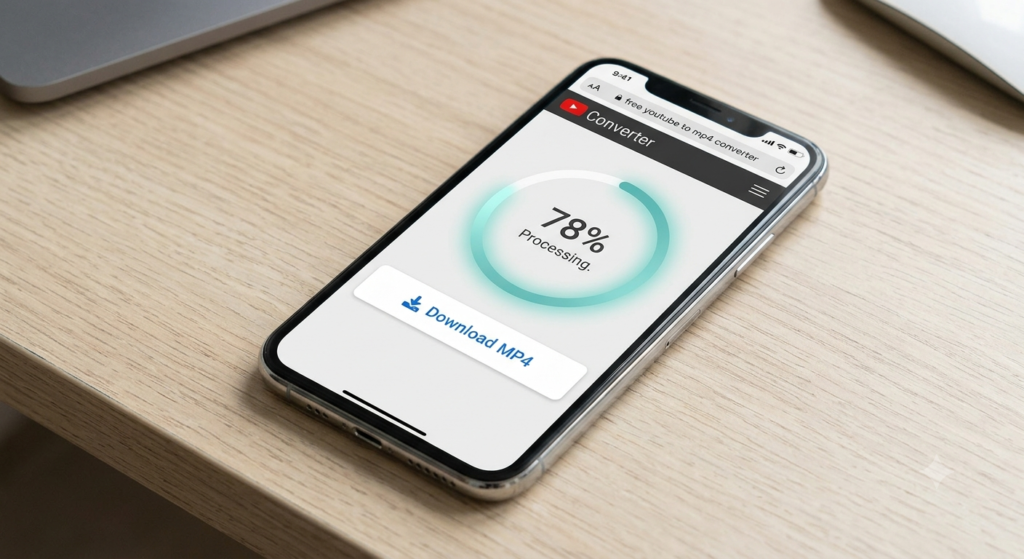
Paid platforms typically offer faster processing since they aren’t supporting the same volume of free users on shared servers. For occasional conversions, this difference is rarely noticeable.
Security and Privacy
Reputable paid software usually comes with clearer privacy policies and dedicated support. With free tools, it’s worth checking reviews and permissions carefully before use, since quality varies more widely.
YouTube to MP4 Player Converter Explained
Compatible MP4 Players
MP4 files play in nearly every modern media player, including VLC, Windows Media Player, QuickTime, and the default gallery or video apps on smartphones.
Playback on Windows, Mac, Android & iPhone
Because MP4 is a universal standard, a file converted on one device plays without issue on another. This cross-platform compatibility is the main reason MP4 remains the go-to format for converted YouTube content.
Supported Video Formats Beyond MP4
While MP4 covers most needs, some situations call for a different format.
MP3
Best for audio-only downloads, such as music or podcasts extracted from a video.
AVI
An older format is still used in some editing workflows, though file sizes tend to be larger.
MOV
Common in Apple’s ecosystem and frequently used in professional video editing software.
MKV
This format allows you to include multiple audio tracks, subtitles, and metadata in one file, making it ideal for backups and long-term video storage.
WebM
A web-optimized format often used by YouTube itself, favoring smaller file sizes over broad compatibility.
Common YouTube to MP4 Conversion Problems and Solutions
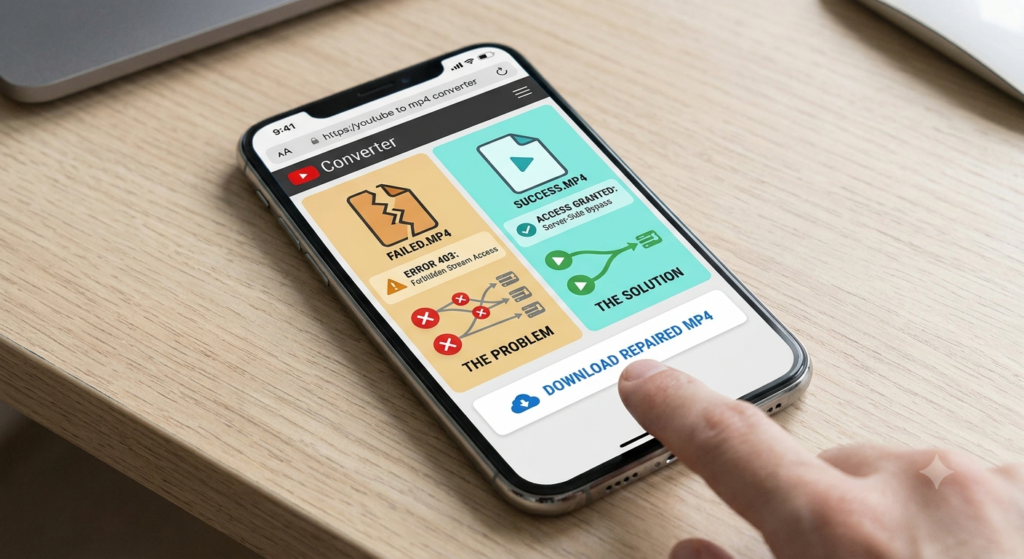
Video Not Converting
This usually happens with private, age-restricted, or region-locked videos.Check that the video link is accurate and confirm the content isn’t private, age-restricted, or unavailable in your region.
Download Failed
Failed downloads are often caused by an unstable internet connection or a server timeout. Refreshing the page and trying again typically resolves the issue.
Poor Video Quality
If your output looks blurry, check that you selected a higher resolution before converting, since some tools default to a lower setting.
Audio Not Syncing
This is rare but can occur with longer videos. Re-converting the file or trying a different tool usually fixes the sync issue.
Is YouTube Converter Safe and Legal?
Security Risks
Some converter websites carry intrusive ads or redirect links. Sticking to well-reviewed tools and using an ad blocker reduces exposure to these risks.
Malware and Fake Download Buttons
A common trick on low-quality sites is placing multiple fake “Download” buttons that lead to ads or unwanted software. Always look for the button tied directly to your converted file, and avoid anything that prompts an unexpected file install.
Copyright and Platform Rules
According to YouTube’s Terms of Service, downloading videos without the copyright owner’s permission may not be permitted unless YouTube provides an official download option.
Converting videos for personal, offline use is common practice, but redistributing or monetizing downloaded content without authorization can violate copyright law. When in doubt, stick to content you own, have permission to use, or that’s explicitly licensed for download.
Conclusion
A YouTube to MP4 converter gives you a simple, practical way to save videos for offline viewing, as long as you choose a safe tool and respect copyright guidelines along the way. Focus on converters that offer clear quality options, skip the registration walls, and avoid suspicious download buttons.
If you’re ready to get started, ytmpv4.biz offers a clean, registration-free way to convert your videos with the quality and safety standards covered in this guide. For more guidance on getting the most out of your downloads, feel free to reach out to our team with any questions.
FAQs
Can I Convert Videos Without Registration?
Ye .this converters let you paste a URL and download the MP4 file without creating an account.
Does It Work on Mobile Devices?
Yes, most modern converters are built to work directly in a mobile browser, with no app installation required.
Can I Download High-Resolution Videos?
Yes converters support up to 1080p or 4K, depending on the original video’s available.
How to download MP4 from YouTube?
Copy the YouTube video’s URL, paste it into a YouTube to MP4 converter like YTMPV4.biz, select MP4 as your output format, choose a resolution, and click download. The converted file saves directly to your device.
How do you convert a YouTube video to MP4?
Paste the video link into a converter tool, let it process the video, pick your preferred quality (720p, 1080p, or 4K), and download the result. No software installation is needed for most online converters.
How to download clips from YouTube?
For short clips, use a converter that supports custom start and end times, or trim the full downloaded MP4 afterward using a basic video editor or media player with built-in trimming tools.
How to download videos from YouTube for free?
Use a free online converter with no registration requirement. Paste the URL, select MP4 format and quality, then download. Stick to reputable tools to avoid ads or fake download buttons.